AutoCAD is a computer-aided design software developed by Autodesk Company. The versatile software, in this era of digitalization, has changed the entire working scenario for the design and drafting community. It has revolutionized the design and drafting process from hand drafting to quick commanding design thereby creating 2d and 3d designs and cutting down all the manual labour. The excellent capabilities of the software allow all the designers and drafters to work efficiently and smartly. AutoCAD is a vast software, it offers 2D as well as 3D design and it has many features that can make life much easier and help complete the desired task before time with excellent quality. While the software offers varied and vast functions there some tricks that can speed up the process of delivering professional CAD drafting and make work easier. These tips and tricks can be implemented for file setup, drafting standards, or even file handling and printing purposes. Here in this article, you can find some very useful and time-saving tips and tricks to improve productivity.
Software-Specific Keyboard Shortcuts
AutoCAD provides software-specific keyboard shortcuts that can save time and also allow to create or modify the existing shortcuts. These shortcuts make the drafting quicker and more accurate thereby reducing the extra work.
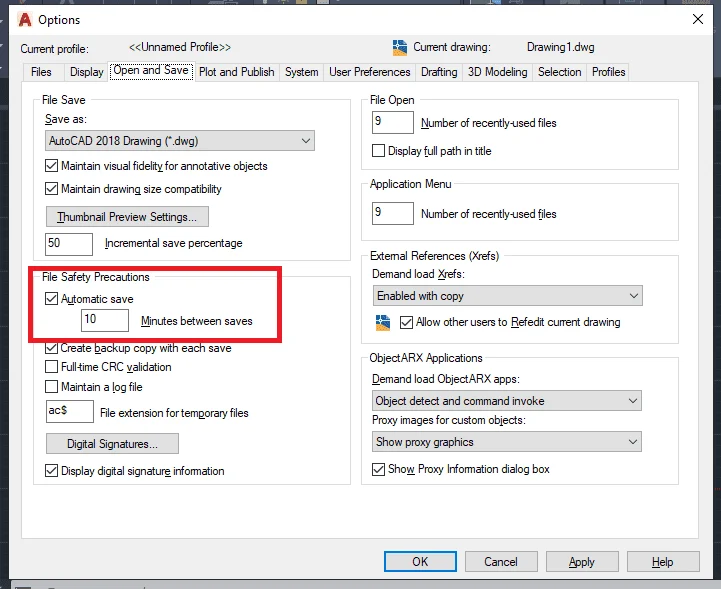
Autosave Setup
Setting the file to auto-save ensures that in case of any mishap, the file will be saved automatically at certain time intervals so the work won’t be lost and if so, it can also be retrieved from the drawing recovery file manager.
Making Proper Use of the Quick Access Toolbar
Generally, all the tools needed for quick access are available in this toolbar but it can be modified as per the use to save time from finding the tools, and customizing this toolbar can help use the tools in a better way.
Use of Layers
It might happen in order to complete before or on time the entire drawing is created in one layer, but organizing the drawing in layers can be very helpful while working further. Organizing in layers will also help in associating many other parameters to the drawing.
Zoom Extents
Zoom command provides prompt options to view the drawing however one wishes. This helps in reducing the time spent manually adjusting the view and deliverers the desired result.

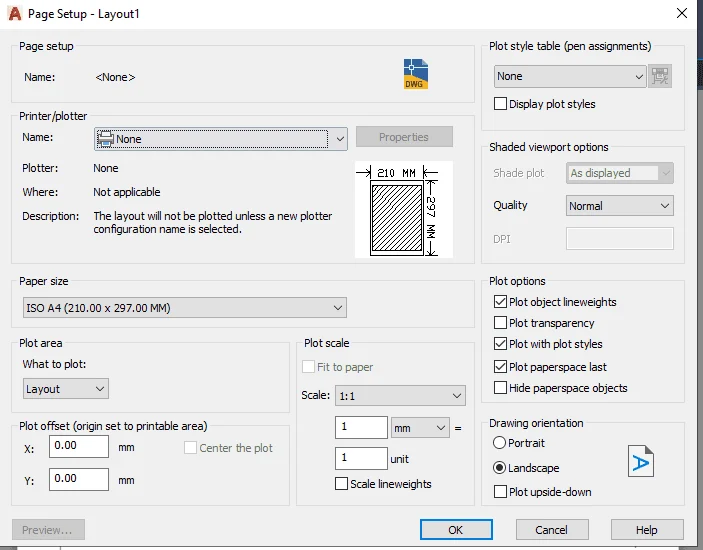
Display Plot Styles
In order to see how the drawing will look after plotting, several setup options are provided in the page setup dialogue box. From this dialogue box, we can edit the plot styles to our requirements rather than going back and forth after plotting the sheets.
Shared Views
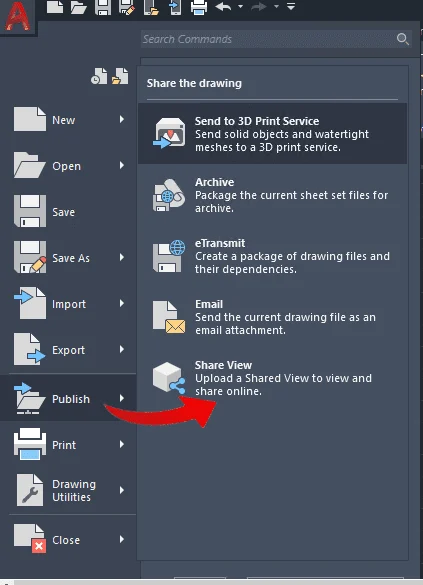
AutoCAD allows to share the design without sharing the original DWG file or PDF. A viewable file can be created for which a viewing link can be shared. This option is available in the menu bar under publish option.
Using OSNAP
Using object snap allows one to draw the objects precisely and accurately without any geometrical errors. Disabling OSNAP and working can create many drafting errors in the drawing.
Using MLINE(MULTILINES)
MLINE command helps in creating multiple parallel lines at once at specified distances in one command instead of offsetting them. These lines and junctions can be further modified from the assigned properties. For instance, while drafting a floor plan, we generally provide offsets for wall thickness, but using this command we can draft directly with the wall thickness which makes delivering construction blueprints easier and quicker.
Isolating Objects
Instead of working in a heavy and confusing surroundings, objects can be isolated which makes the non-selected objects temporarily invisible. This option can be found by right-clicking or by typing ISOLATEOBJECTS in the command line and these objects can be brought back by using the UNISOLATEOBJECTS command.
Using Associative Arrays
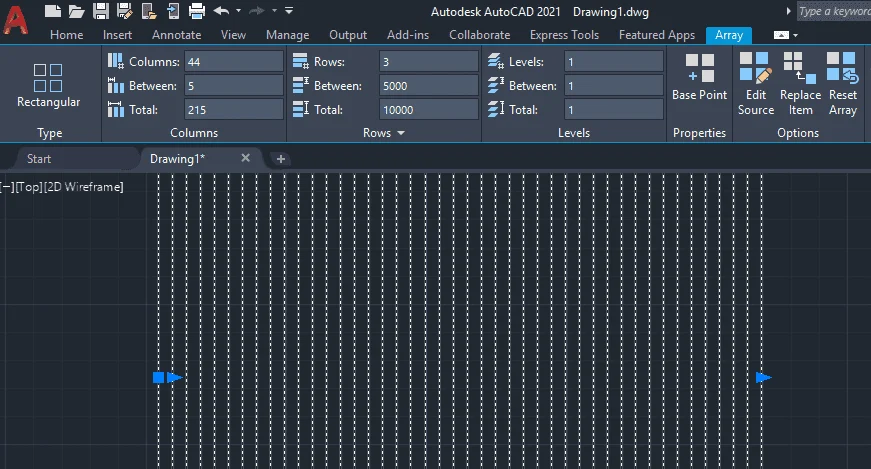
Using associative arrays can be very helpful and time-saving as it is easier to make adjustments to any array pattern by changing its assigned parameters than changing it in individual objects. It makes working with symmetrical or repeatable patterns easy.
Using Dynamic Blocks
It is always a smarter way to work in dynamic blocks as it allows us to change shape, size, or configuration depending on the use instead of inserting a new block every time. This also helps reduce the file size. Using such smarter ways of working can also make our complex MEP shop drawings smart and easier to produce.
Using Group Command
Working in groups allows us to associate the objects temporarily while maintaining the individuality of the objects. These groups can be named and edited as per the use which can save time from block editing.
Use of W(WRITE) Block
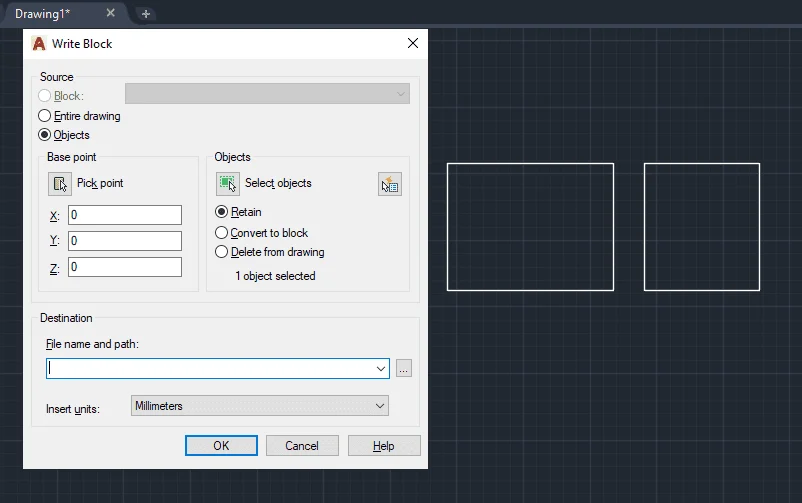
W block allows to save the selected object or part of the drawing into a new DWG file and provides different options to save the selected part (i.e. if it needs to be converted into a block or it should be saved as an object). The difference between block and W block is that W block creates a global block that can be inserted into any file, whereas block can only be inserted into the current DWG file, and the properties change when used in another file.
Using Attributes
Attributes help in creating text information in the form of editable blocks. So if there are certain annotations to be given attributes can allow to edit the information while keeping the same style.
Comparison Between DWG’s
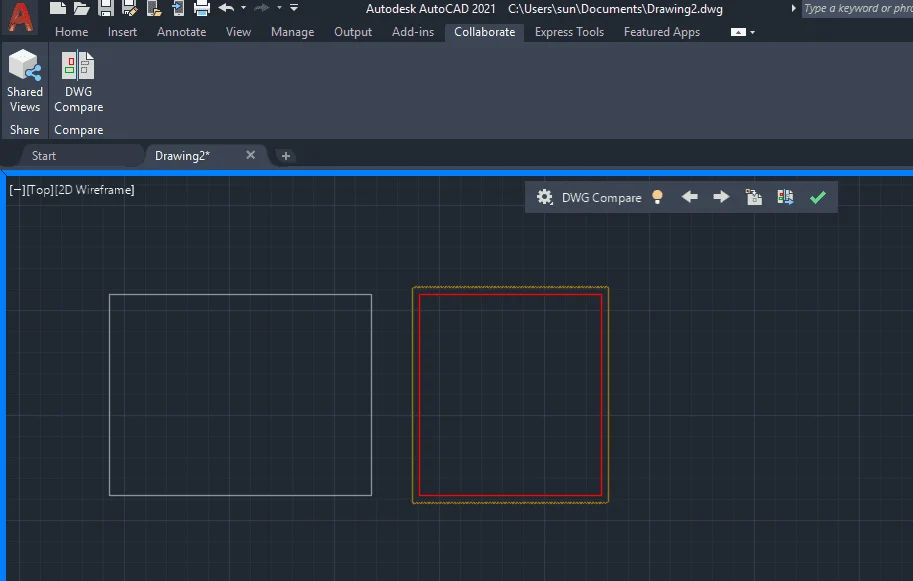
AutoCAD allows us to compare two drawings and can tell all the changes which can be further highlighted by revision clouds so we don’t miss anything in between the revision processes. This option can be found under the Collaborate tab on the ribbon.
Use of Multiline Text (MTEXT) MTEXT command allows wrapping several paragraphs as a single multiline text which further allows editing properties like appearance, size and boundaries and saves time from editing each and every text line.
Find and Replace and Use of Spell Check
Considering the detail of the drawings and annotations it can be very hard to check each tag individually, AutoCAD provides this option to check the spelling errors and even to find any word that needs replacing. All these commands have shortcuts as well as they can also be found under the text option in the ribbon.
Using X-REFS (External References)
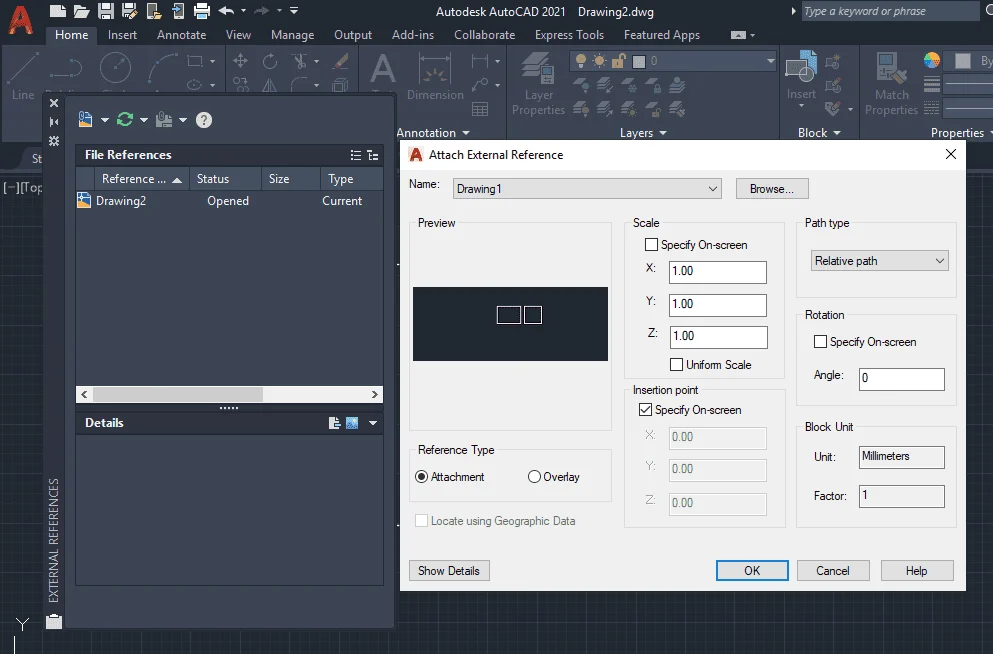
X-Ref is an external reference to another AutoCAD drawing. These files are linked to the drawings files to further work on it. Any changes made to these files are automatically updated in the current drawing on opening or reloading the linked files.
eTransmit
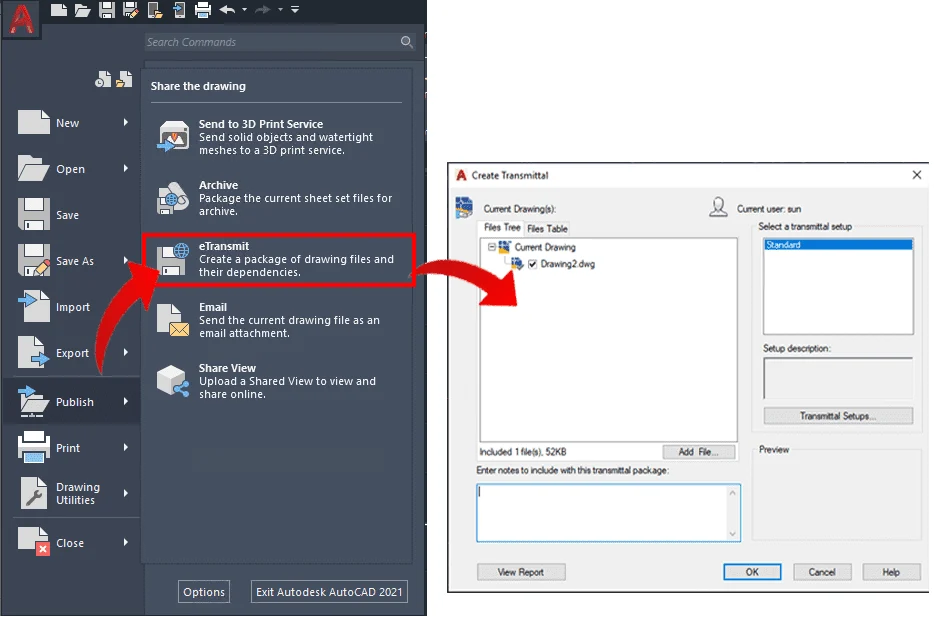
When the file consisting of external references is shared, the linked files won’t be seen as the linked path changes. To avoid this eTransmit command is used to create a transmittal package that automatically includes all related dependent files such as Xrefs or any image/font files. This command can be found under publish in the application menu.
Sheet Set Manager
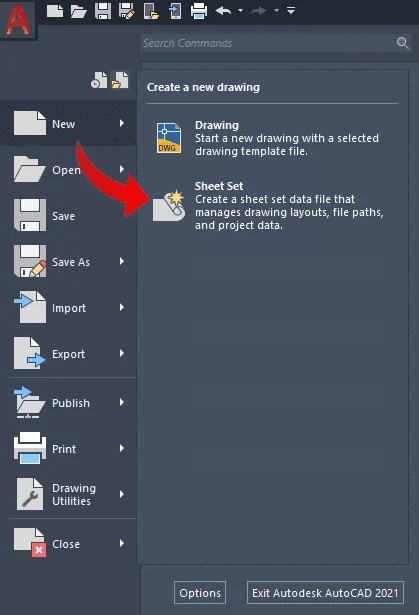
The sheet set manager maintains all the stored views from both layout and model space along with serving as a file management system. This set maintains all the file paths and project data which is accessible to everyone working on the project.
Using Isometric Text and Dimensions for Isometric Views
We all know that AutoCAD provides the opportunity to draft objects in 2D as well as 3D along with isometric views. It is possible to add all the tags, dimensions and annotations in the same alignment by creating different dimension styles and assigning the desired angle to it.
Use of Toolpallates
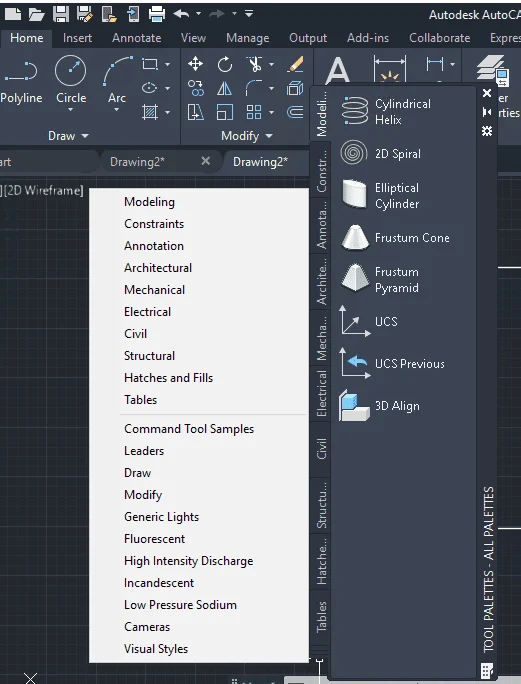
AutoCAD offers this varied range of in-built palates that has all the commonly used blocks, hatches and all the necessary tools for architecture, civil, manufacturing and engineering along with all the annotation blocks required for the drawing. It saves time and makes work easier.
Use of the CHSPACE Command
It is very tricky to understand how the drawing areas in model space and paper space interplay. CHSPACE allows moving objects between model space and paper space while adjusting the scale by itself. Many times it happens where two different scales of drawings are to be shown in one sheet and as a common practice, the scales for dimensions, text and tags must be seen as the same while viewing the entire sheet, CHSPACE comes in handy by adjusting annotations between model space and paper space to make the drawings look correct.
Use of Burst Command Instead of Explode
While working with blocks, in general, EXPLODE command is used the most to re-edit the block for different properties, but instead BURST command makes it easier which explodes the block while preserving the block layers and values and making it editable.
Audit
One of the most frustrating situations is when AutoCAD files act strangely or it keeps crashing randomly while giving specific commands which makes it unworkable. AUDIT command can help resolve this by finding the bad coding error and fixing it within the software by using the pre-programmed intelligence thereby resulting in a corrupt free file to work.
Cycling Through Viewports
It can be very difficult to select one smaller viewport opened inside the larger ones, as it always activates the larger viewport first but with CTRL + R one can select the larger viewport and keep pressing to cycle through the smaller or desired viewport to be selected, thereby making it easier to work in viewports.
Use of Multiple Command
Let’s say some command is to be repeated, so instead of wasting time giving the command every time, type multiple followed by the desired command and it will continue the command until pressed ESC to end the continuity.
OOPS Command
It is possible to bring back any object that has been erased without undoing any changes made after using the erase command. It can be very helpful to work in an uncluttered area in a cluttered drawing.
Cycling Through Objects
At times the drawing file can have many objects piled up and it a very difficult to pick the one desired object. For situations like this, the CTRL key can be used by holding it down as one picks a location and it will then cycle through all the objects under the cursor until the wanting object is selected.
Importing Pointclouds
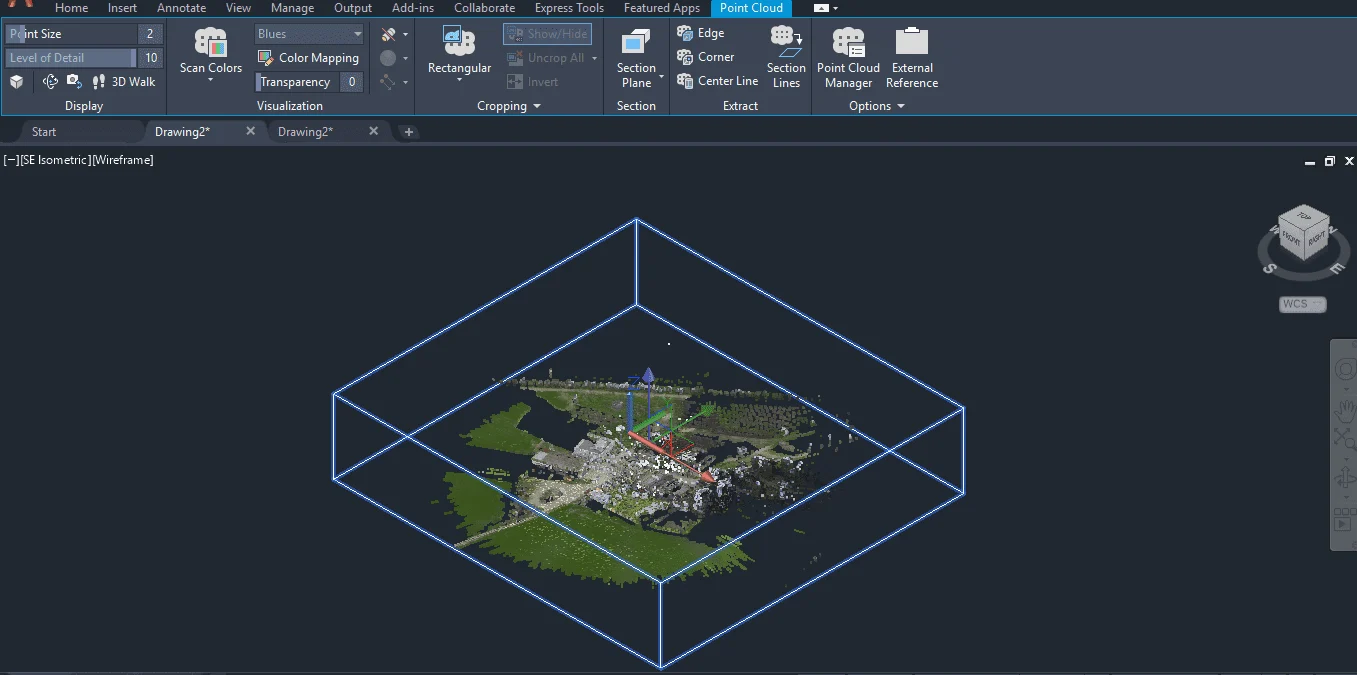
It is possible to insert point clouds in AutoCAD that can provide real word context to recreate the objects from reference and it can help create quite complex objects with real-time 3D references.
Data Extraction
AutoCAD can make the work easier by allowing extraction of data from one or multiple drawings thereby simplifying the data collection process for scheduling or any other purposes. DX command helps as a shortcut to use this feature or it can also be found in the AutoCAD ribbon. These were some of the quick tips that can be very helpful to work CAD projects. We at Tesla Outsourcing Services, ensure that such informative training sessions and tutorials are shared so that we, as a team can work more efficiently and smartly to deliver the intended CAD drawings in the stipulated time.
Conclusion
As discussed in the above article, everyone has their way of working on AutoCAD, but using these shortcuts and tricks along with file handling tips can be fun and engaging and a great learning experience. AutoCAD constantly offers new and enhanced features, such as 3D Building Modeling capabilities, to improve the experience of flexibility and productivity. These features, particularly BIM, allow for more integrated and intelligent design processes, making it a boon for the design community and an advantage we can use to the fullest.


