
Introduction
If you had to name dozens of rooms, number a thousand sheets or make multiple views on your own, Revit would be very challenging. Doesn’t that sound like it would be too much? When it comes to Building Information Modeling (BIM), speed is important and being efficient saves money. That’s when Dynamo becomes involved.
With Dynamo and Revit, you can automate repetitive work, lower chances of making errors and allow your designs to be more imaginative. Using Dynamo, both an architect aiming to create parametric facades and a BIM manager managing model coordination can work smarter instead of harder in Revit.
In this blog, we explore how Dynamo improves the Revit experience by making users more efficient, accurate and able to discover new ways to design. If you’re seeking ways to enhance your BIM approach, our information is just what you need.

Dynamo improves the Revit experience
What is Dynamo for Revit?
Dynamo which works with Revit, is an open-source environment for visual programming so you can write scripts for behaviors, change data and automate tasks without typical coding. Dynamo Sandbox works on its own, but Dynamo for Revit runs inside Revit. Because of this, commands executed in Dynamo can directly manage elements in Revit by building walls, setting values or grouping views.
At its core, Dynamo is built on a few simple concepts:
- Nodes: Each action or data point is a node.
- Wires: Nodes are connected by wires to pass data.
- Data Flow: You build a network where the output of one node becomes the input for another.
Beginners often start with simple scripts like renaming views or placing elements, while advanced users leverage Python scripting and API integrations for complex automation.
Dynamo works with Revit versions 2017 and beyond, and many custom packages like Clockwork and Data-Shapes expand its capabilities significantly. Whether you’re a visual learner or a logic thinker, Dynamo provides a canvas where creativity meets computation.
Why Automate Workflows in Revit?
Revit is a powerful BIM tool, but anyone who’s worked on a large-scale project knows the platform can become labor-intensive. From managing sheets and schedules to maintaining data integrity, many tasks are ripe for automation.
Here’s why automation is a game-changer:
- Time Efficiency: Instead of manually duplicating views or entering room data, Dynamo scripts can handle it in seconds.
- Reduced Human Error: Automation eliminates the chances of typos, missed elements, or inconsistent data.
- Consistency Across Projects: With predefined logic, every output follows the same rules.
- Enhanced Creativity: Designers can focus on design while Dynamo handles the tedious parts.
Real-world example
Think about changing the names of hundreds of sheets to conform with a new method. If you did it by hand, it would take endless time. With Dynamo? In just a few minutes and a single script, you’re done. Thanks to automation, it is much easier to apply standard rules to element names, types and descriptions, ensuring everyone can use the same data across different sectors of the project. When you use Dynamo to automate, it makes your workflows smoother, checks for correct data in tools and allows your team to pay more attention to excellent design.

Dynamo Revit
Dynamo can automate the creation of hundreds of views, sheets, or even parametric façade elements in Revit, saving teams hours—or even days—on tasks that would otherwise be completed manually.
Key Areas Where Dynamo Excels in Revit
Dynamo can touch nearly every aspect of a Revit project. From model creation to data extraction and visualization, here’s where it shines the brightest:
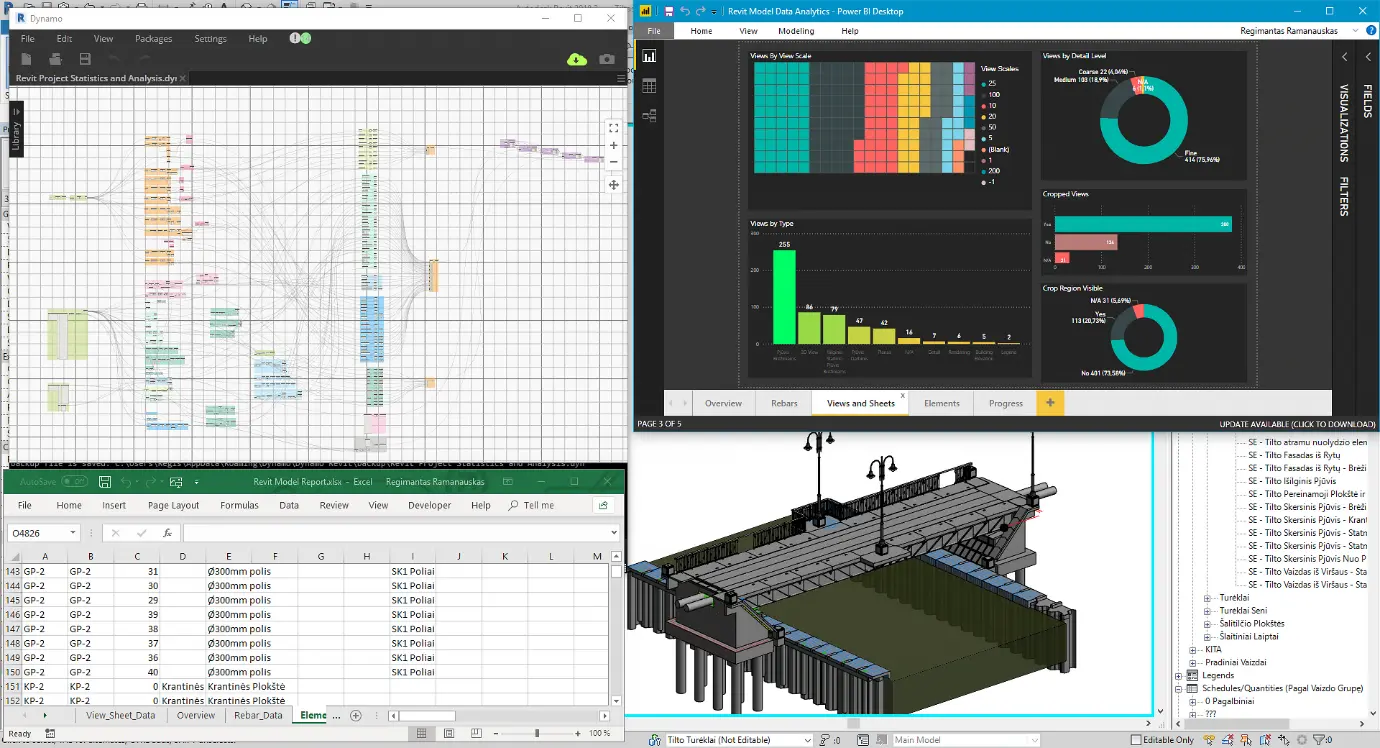
Model Management Using Dynamo
Model Management
Handling views, sheets, and families can be a mammoth task, especially on complex projects. Dynamo can automate:
- View Creation: Generate multiple floor plans, ceiling plans, or sections from templates.
- Sheet Creation: Create sheets in bulk and place views automatically using defined rules.
- Parameter Updates: Quickly fill or edit parameters across multiple elements (e.g., update fire ratings across doors).
Data Extraction and Management
Extracting and organizing data is vital for accurate BIM workflows. Dynamo simplifies:
- Schedule Exporting: Send data to Excel with customizable formatting.
- Bulk Parameter Editing: Read and write parameter data in batches (think hundreds of rooms or doors).
- Data Validation: Identify and flag missing or incorrect values in model elements.
Geometry and Design Automation
Architects and designers use Dynamo for creative tasks as well:
- Parametric Design: Generate complex, rule-based geometries or organic forms.
- Adaptive Components: Place curtain panels, trusses, or facade modules parametrically.
- Surface Paneling: Subdivide and apply design logic to conceptual mass surfaces.
Quality Control and Auditing
Errors and inconsistencies can make or break a model. Dynamo helps QA/QC by:
- Finding Duplicates: Locate overlapping or identical elements (like doors or rooms).
- Naming Checks: Enforce naming conventions across views, sheets, or elements.
- Workset Auditing: Ensure elements are on the correct worksets before sharing.
Collaboration and Coordination
In a multi-disciplinary BIM environment, Dynamo helps synchronize efforts:
- Workset Assignment: Automatically assign elements to the correct worksets.
- Link Management: Control visibility or reload settings for linked models.
- Shared Parameters: Create and manage shared parameters across multiple files with ease.
Advanced Dynamo Use Cases and Best Practices
Now that you’ve mastered basic Dynamo scripts, it’s time to explore the more advanced, impactful workflows that can truly revolutionize your Revit projects. These techniques can enhance collaboration, enforce standards, and even generate design elements dynamically.

Excel Driven Automation
Excel-Driven Automation
Linking Dynamo with Excel allows users to both extract and inject data into BIM models in REVIT. For instance:
- Element Schedules can be exported to Excel for review, then modified and pushed back into Revit.
- Ideal for project managers and QA teams who prefer working in spreadsheets.
Node Example:
- Excel.ReadFromFile
- Element.SetParameterByName
With Dynamo, you can link your Revit model to Excel, enabling seamless two-way data exchange for bulk parameter updates, schedule management, and quality control—all without writing a single line of traditional code.
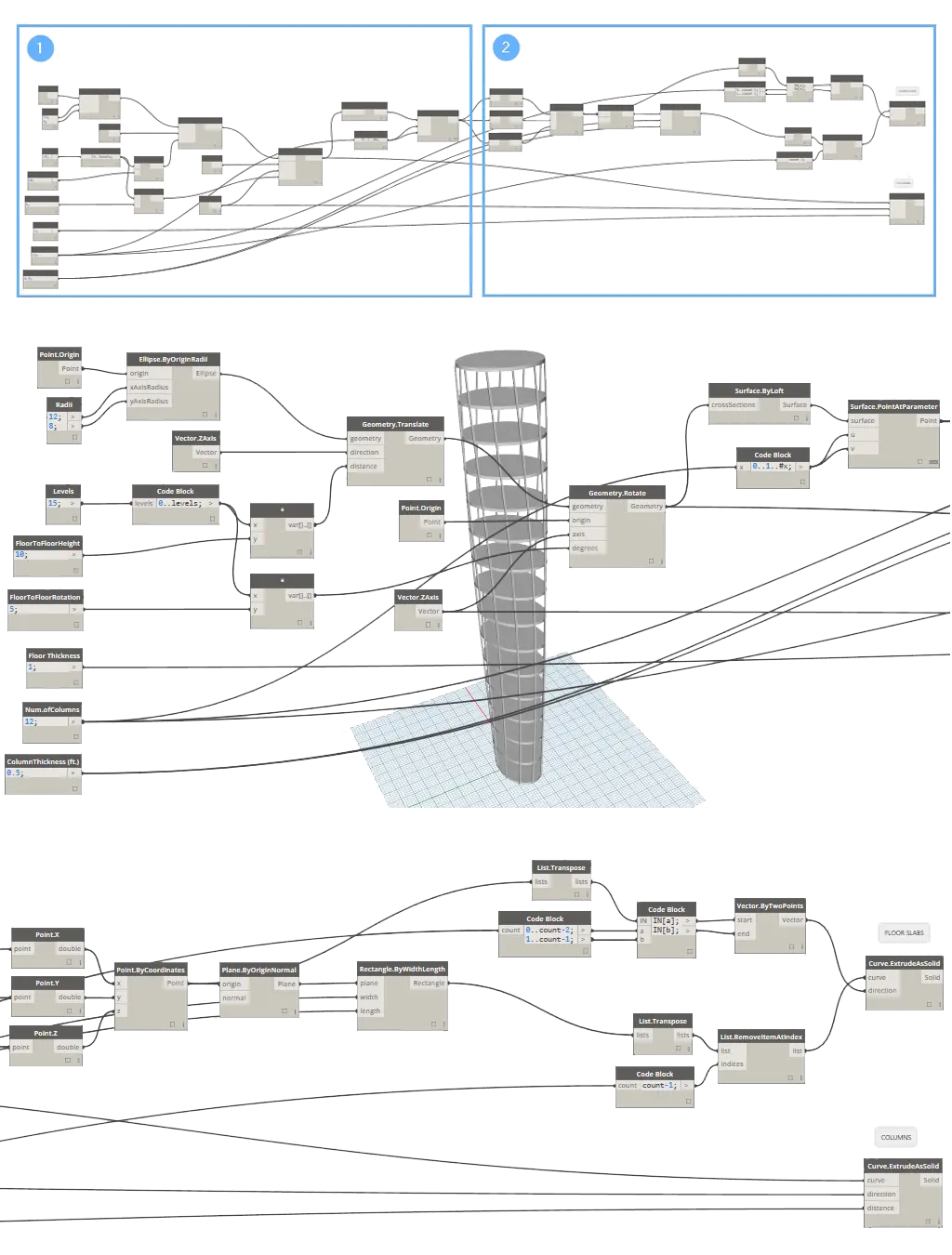
Design Space Exploration
Design Option Evaluator
Dynamo can help automate the comparison of multiple design options based on criteria like area, cost, or daylight exposure. It’s not just about building models—it’s about making informed decisions faster.

Generative Design Using Dynamo
Generative Design
With geometry nodes and logic loops, you can:
- Create façade patterns.
- Test various stair configurations.
- Model sun-shading devices based on solar exposure.
Tools like Refinery or Project Fractal integrate with Dynamo to allow generative design through sliders and constraints.
Model Auditing Scripts
Automatically flag:
- Elements on the wrong work sets.
- Views with improper naming.
- Families placed outside of model bounds.
These checks are incredibly useful before issuing models for coordination.
UI-Based User Inputs
With packages like Data-Shapes, you can create interactive interfaces within Dynamo:
- Drop-downs, checkboxes, text fields.
- Allows less technical users to run powerful scripts with predefined options.
Best Practices for Dynamo Implementation
To ensure Dynamo becomes an asset and not a liability in your BIM process, consider these tips:
Modularize Your Scripts
Break your workflows into smaller, reusable components. For instance, a node group for “Get all doors” can be reused in dozens of scripts.
Use Groups and Color Coding
Organize your scripts visually. This helps teams understand your logic instantly.
- Yellow: Inputs
- Blue: Logic
- Green: Outputs
Add Documentation
Use Note nodes and file naming conventions so your future self or team members can understand the script briefly.
Backup Your Models
Always test Dynamo scripts on a backup or detached model before applying to a live project.
Stay Updated
Keep Dynamo and your packages up to date. New features, bug fixes, and improved nodes are regularly added by the community.
Version Control for Scripts
Use cloud storage or platforms like GitHub to manage version histories of your Dynamo scripts. It’s invaluable when rolling out updates or debugging errors.
Setting Up Dynamo Workflows in Revit
Before you dive into automation, it’s crucial to set up your Dynamo environment and workflows correctly. Use this checklist to ensure you’re ready for success:

Dynamo Workflows
Define the Task You Want to Automate
Clearly identify the problem you’re solving—e.g., renaming views, generating sheets, updating parameters.
Start with a Clean Revit Model
Work in a cleaned-up, backed-up version of your Revit project to avoid data loss.
Open Dynamo from the Revit Manage Tab
Always use the Dynamo version integrated with Revit for model-specific automation.
Organize Your Workspace
Use Groups, Notes, and logical node clustering to make your scripts readable and reusable.
Use Essential Packages
Install and update trusted packages like:
- Clockwork
- Data-Shapes
- Rhythm
- Bimorph Nodes
Test Scripts on Sample Data First
Before applying to a live project, run your script on a test file to verify its accuracy.
Use Watch Nodes for Debugging
Keep an eye on data as it flows through your script using Watch, Preview, and List nodes.
Document Your Logic
Leave comments or labels explaining what each section of the script does—especially helpful for teams.
Save Your Scripts Systematically
Create a Dynamo library with categorized folders—naming each script based on function and Revit version compatibility.
Establish a Version Control Habit
Keep backups of scripts as they evolve. Use naming conventions like SheetRenamer_v1.2.dyn.
Seek Feedback and Iterate
Share your script with colleagues, gather feedback, and refine it for better performance.
Automate and celebrate!
Once tested and approved, let your script run—and enjoy the saved hours and boosted productivity!

Design Automation to Generative Design
Future Trends
Dynamo is not just a tool for automation; it’s a stepping stone into the exciting world of computational and generative design.
Dynamo’s Role in Computational Design
By combining logic, algorithms, and geometry, Dynamo empowers architects to move beyond manual drafting into a realm where designs evolve through defined rules and relationships. Whether it’s optimizing space layouts or creating complex facades, Dynamo allows designers to work with parametric models that can adapt and evolve with changing requirements.
Generative Design Workflows
Autodesk has been pushing forward with generative design—where multiple design options are generated and evaluated against performance goals. Dynamo scripts can be used to define input parameters and constraints, feeding into generative engines that explore countless variations quickly. This means architects can make informed decisions based on real data and performance outcomes.
Emerging Tools Complementing Dynamo
Tools like Autodesk’s Generative Design in Revit, Refinery, and Project Fractal expand upon Dynamo’s capabilities by providing enhanced optimization and simulation features. These integrations are paving the way for BIM workflows that are smarter, more sustainable, and more responsive than ever before.
Dynamo for Sustainable Design Automation
In the race toward greener buildings and smarter designs, Dynamo is proving to be a game-changer for sustainable architecture. It’s not just about automating tasks but enabling designers to explore sustainability principles with computational precision.

Maximizing Energy Efficiency
Automating Energy Efficiency and Daylighting Calculations
Instead of manually calculating window-to-wall ratios or daylight penetration, Dynamo scripts can rapidly analyze model geometry against sustainability benchmarks. For example, you can write a script to extract room geometry, surface areas, and window placements, then output data directly usable for energy modeling tools. This automation accelerates the iterative design process, letting you test multiple options without losing precious time.
Parametric Control of Sustainable Elements
Shading devices, green roofs, and ventilation components often require fine-tuned parametric control to maximize their performance. With Dynamo, you can design these elements to respond dynamically to environmental inputs—like sun angle or wind direction. Imagine a shading system that automatically adjusts panel sizes or angles based on the building’s orientation or time of day, all driven by Dynamo scripts linked to your Revit model. This not only reduces manual updates but also encourages innovative, responsive design solutions.
Conclusion
Automating Revit with Dynamo isn’t just easier; it makes your project more advantaged. Dynamo helps AEC professionals do their work more rapidly, intelligently and make fewer mistakes. As a result, architects, BIM managers and engineers do not need to spend time on repetitive tasks and can devote themselves to creating and finding solutions.
Because construction projects are finishing under short timeframes and with strong teamwork, Dynamo allows design ideas to be directly put into production. A little practice helps you discover the full potential and speed in using Revit for all your design needs.
Whether you’re just starting out or aiming to optimize enterprise-level BIM projects, now is the time to embrace visual programming and let automation do the heavy lifting.
At Tesla Outsourcing Services, we specialize in custom Dynamo scripting, BIM implementation, and Revit automation. Whether you need a one-time solution or enterprise-wide automation strategies, our experts are here to help.
- Streamline model management
- Ensure data accuracy across disciplines
- Deliver projects faster with fewer errors
Let Dynamo work for you. Contact us today for a consultation or a custom script built to your needs.
Contact UsFrequently Asked Questions
Can Dynamo replace Revit plugins or external tools?
Dynamo can replicate many plugin functions, and in some cases, do more—especially with custom logic and data manipulation. However, for highly specialized tasks, plugins still have a place.
How safe is it to use Dynamo on live projects?
As long as you back up your Revit file and test scripts on a detached model, it’s very safe. Avoid running untested scripts on production models.
What’s the best way to start using Dynamo in my firm?
Start with small tasks—automating sheet naming, updating parameters, or exporting schedules. Build a library of reusable scripts and gradually involve your team in the learning process.
Do I need to know Python to use Dynamo effectively?
Not necessarily. Many powerful scripts can be built entirely with visual nodes. However, learning a bit of Python can unlock even more advanced capabilities.


