Autodesk Revit 2026 is here, with new improved features and refinements to boost performance, streamline workflows and fix those bugs. This update brings powerful enhancements to the BIM ecosystem. Key features include advanced automation, boosted real-time collaboration across disciplines, and user-focused improvements.
In today’s fast-paced AEC industry, accuracy, efficiency, and teamwork are crucial. Revit 2026 addresses these by eliminating obstacles in project collaboration, documentation, and modeling.
Though this release has modest changes compared to past versions, it brings focused improvements that aim at:
- Enhancing system efficiency – delivering faster processing and more reliable performance.
- Boosting team coordination – facilitating efficient workflows and integrated collaboration.
- Broadening modeling functionality – introducing new tools and features to support complex design tasks.
Let’s see what’s in it for us!
Top Features of Revit 2026
- The UI upgrade we’ve all been waiting for: Native Dark Mode. Revit 2026 finally offers a fully native dark mode, where Autodesk has optimized not only the aesthetics but also the contrast levels, making the dark theme practical. With clearer icons, longer sessions are now comfortable as this feature applies to the entire User interface from Toolbars to dialog boxes.
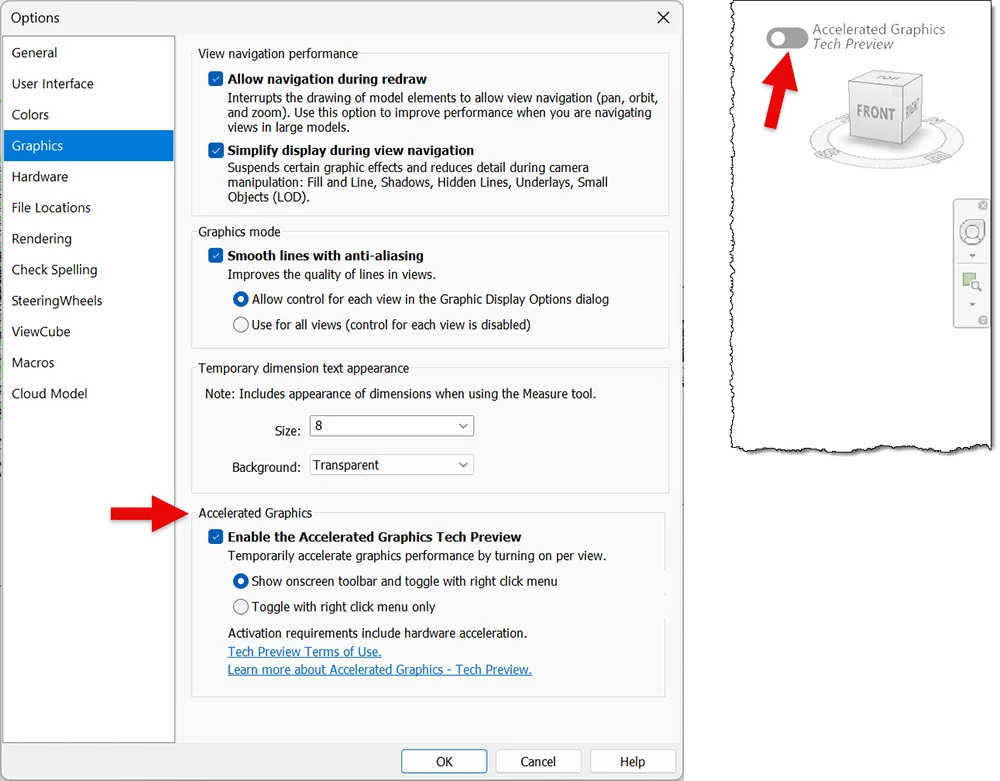
- Performance Enhancements: Review your designs faster with the new Accelerated Graphics mode (available as Tech Preview), which will enhance the navigation between 2D and 3D views. This will especially benefit you while working on large and complex models, where you can experience smoother panning, zooming, and orbiting.
- Compound elements without Core Layers: A breakthrough feature in Revit 2026 where the mandatory designated ‘Core’ Layer can be removed. Walls, floors, ceilings, and roofs can now be created without core layers, allowing smoother joins, better visibility control, and cleaner coordination across disciplines.
- Customized Layer priority: Handling Multi-layer assemblies has become significantly better as the concepts of ‘Priority’ and ‘Function’ are bifurcated. This allows users to select a priority level ranging from 1 to 5 using the drop-down menu, enabling precise control over the appearance and behavior while joining multi-layer elements which results in enhanced Documentation.
- Custom Text for Title Block Scale: Traditionally, when a sheet features views at different scales, Revit defaults to the generic “As indicated” label on title blocks—often leading to ambiguity and extra manual adjustments. With this improvement, whenever more than one scale view is present on the same sheet, a custom text override is automatically applied to the Scale parameter of the title block. This implies that you can now display customized text that more accurately reflects the project’s unique requirements rather than a label that is meant to fit all situations.
- View-to-sheet positioning: Reduce manual adjustments with this super feature to maintain consistency in sheets and allow users to assign view placements across multiple sheets. There are two alignment options available here, ‘View Origin’ and ‘View anchor options like-Center/Top Left/Top Right/Bottom Left/Bottom Right’.
In addition to this, you can also ‘Swap view on sheet’ any view with the desired anchor settings.

- Site and Topography Enhancements: Site modeling became a lot more flexible with the new Recessed Subdivision feature. Now, you can define whether a subdivision sits above, flush with, or sunken into a Toposolid — with the updated Sub-divide Offset (formerly “Height”) that accepts positive, zero, and negative values. You can also control this in the Visibility Graphics dialog. You can now apply different Toposolid types to each subdivision, giving you total control over materials and design intent, no more ‘one-size-fits-all’.
In Revit 2026, you can create curtain wall mullions with multiple closed loop profiles, allowing for more complex and realistic mullion shapes, which was not possible in previous versions.
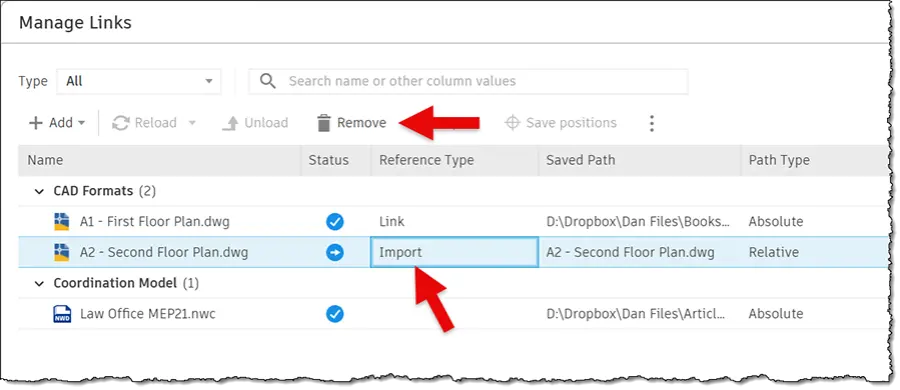
- Manage links tab with Imported CAD: In Revit 2026, you can now see and manage the imported CAD files like DWG, DXF, SKP, and AXM right inside the Manage Links dialog. Both linked and imported files will be controlled within the Manage links button, hence finding any imported CAD will be hassle-free. However, it is restricted when it comes to 3D imports like OBJ, Rhino, STEP, STL, SAT as these are not yet included.
Revit 2026 introduced the “Model by Face” tool for Toposolids, enabling users to generate terrain directly from any non-vertical mass surface, making site modeling and grading much more intuitive.
- Rule-Based Numbering for Model Elements: A new level of automation was unlocked in Revit 2026 where you can streamline the numbering process across multiple categories like walls, doors, curtain panels, rebars, etc. Using custom templates and rules, the numbering can be based on project-specific criteria for example, doors can be numbered according to the room they open into. You can also manually override numbers and resolve duplicate entries with ease. Even after removing the rules, you can retain the texts to protect documentation integrity.
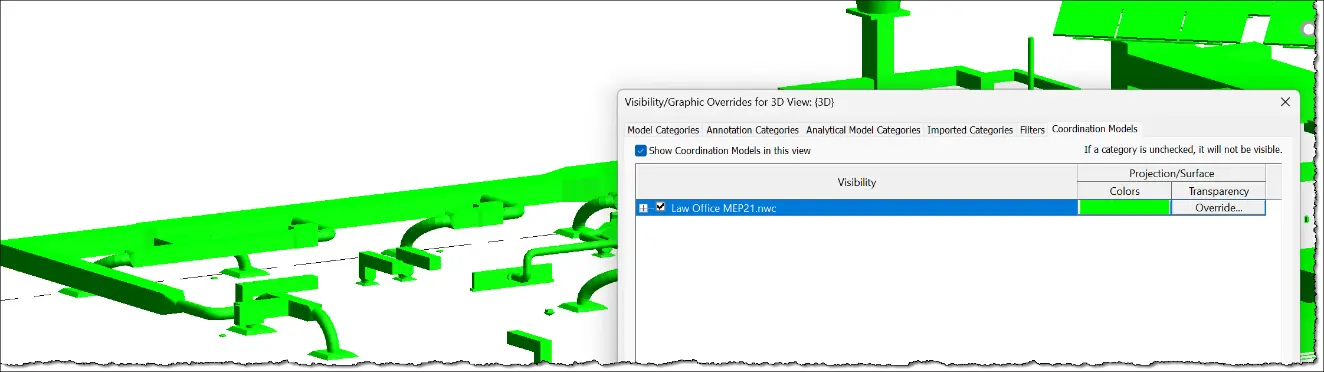
- Enhanced Coordination Model: For a better visual experience while working on the linked files, Revit 2026 has now been introduced to offer improved graphics quality. You can now apply overrides to the lightweight links for better coordination.
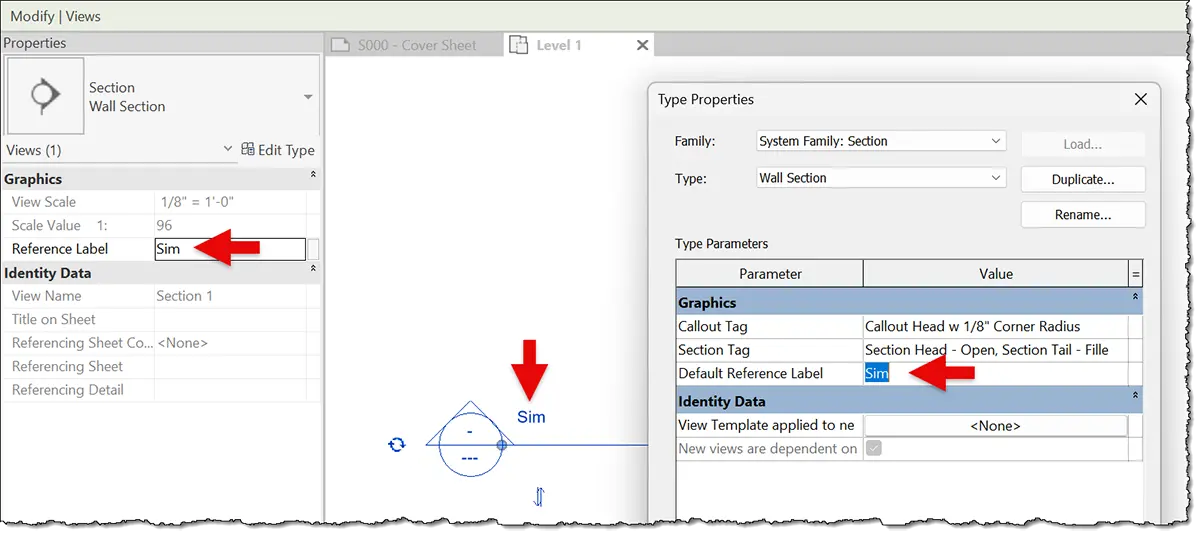
- View Reference Enhancements: Revit 2026 manages view references adequately and triumphs over document integrity. You can now find the ‘Reference label’ parameter as an instance parameter offering flexibility at an individual element level. Additionally, having another ‘Default reference label’ as a type parameter to provide a default setting across.
- Copy and Paste for Shape Editing: Revit 2026 introduces a long-requested ability to copy and paste points and lines during shape editing of elements like toposolids, roofs, and floors. Now you can simply use ribbon controls or keyboard shortcuts (CTRL+C and CTRL+V) to duplicate the points or lines within edit mode and speed up the modeling process.
Automate repetitive REVIT tasks, streamline BIM workflows, & unlock advanced possibilities with Dynamo. Discover how visual programming in Dynamo saves time!
Read Now!Summing Up!
Revit 2026 is not just an incremental update—it’s a decisive step forward in usability, automation, and interoperability. Whether you’re building skyscrapers, planning urban sites, or delivering detailed MEP systems, this version makes the journey faster, smoother, and more collaborative.
As a forward-thinking AEC firm or outsourcing partner, keeping pace with tools like Revit 2026 is how you stay ahead. It’s not just about designing better—it’s about delivering smarter.
“Because in architecture, engineering, and construction, it’s not just about drawing—it’s about delivering real-world results. Let Revit 2026 help you build smarter, quicker, and better.”
Frequently Asked Questions
Who should upgrade to Revit 2026?
AEC professionals, particularly those in architectural, mechanical, electrical, and structural engineering, should think about upgrading. Teams working on large-scale projects or looking for improved collaboration and automation would especially benefit.
Is Revit 2026 faster than the previous versions?
Yes. Users will noticeably navigate more smoothly in both 2D and 3D views with the new Accelerated Graphics Mode, especially when working on big or complicated models.
What AI capabilities does Revit 2026 have?
Revit 2026 interfaces with Autodesk Construction Cloud and other products that use AI for clash detection, project forecasting, and model analysis, even if it doesn’t incorporate AI directly.
Is collaboration between disciplines supported by Revit 2026?
Of course. Revit is made for interdisciplinary usage in structural, architectural, and MEP design. For easier cross-team collaboration, the 2026 version enhances shared documentation settings, coordination model visuals, and visibility control.