In the ever-evolving world of architecture and design, staying ahead of the curve means embracing innovative tools that facilitate seamless creativity and efficient project management. Revit, a Building Information Modeling (BIM) software developed by Autodesk, has become a cornerstone for architects and designers globally. One of its powerful features, Design Options, allows users to explore, evaluate, and redefine building components within a single Revit file. In this blog, we will delve into the intricacies of the Design Options features by exploring its terminologies, workflow, and the art of managing unsupported elements.
Understanding the basics…
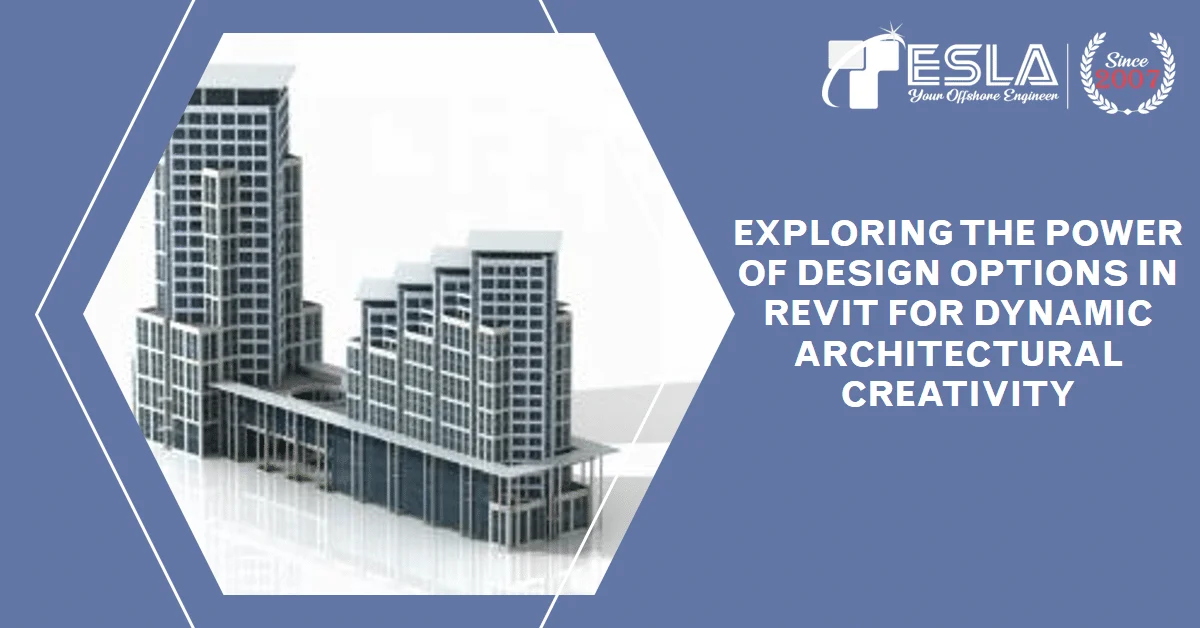
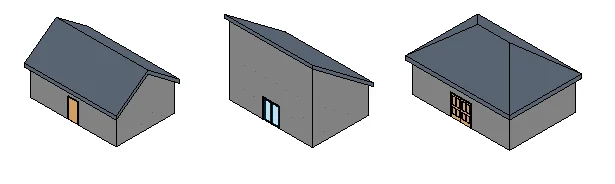
Before diving deep, first, let’s understand what the Revit Design Options feature is all about. The Design Options in Revit provide architects and designers with the flexibility to develop, evaluate, and redesign various building components within a single model. This feature is particularly useful when exploring alternative design possibilities within the same project. For instance, it allows architects to create different roof styles or experiment with various front entries—all within the confines of a single building model.
Design Options Terminologies:
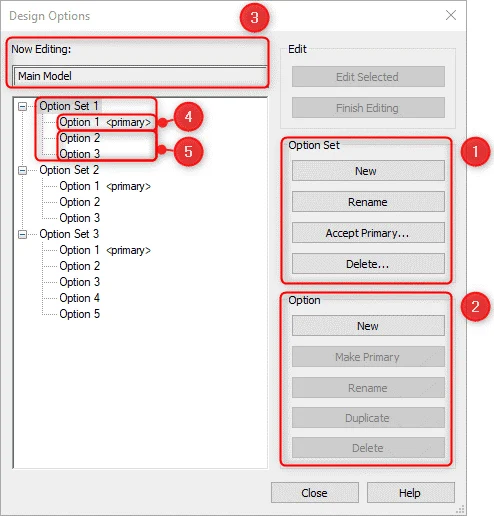
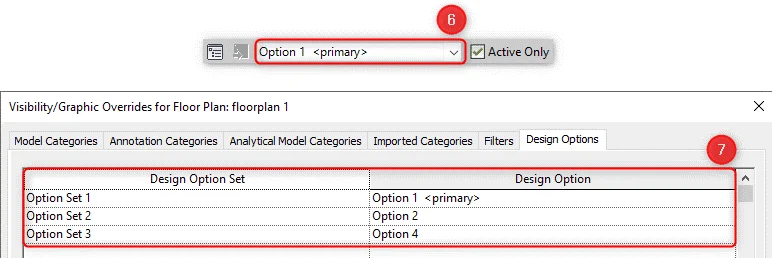
Understanding the terminology associated with Design Options is crucial for harnessing the full potential of this feature. Here are some key terms:
Design Option Set: This contains different design alternatives for a specific design alternative. Users can create multiple design option sets for a project.
Design Option: These are the alternatives within a design option set. Each design option represents a unique configuration or design choice.
Main Model: The main model serves as the baseline for all design options. It contains fixed design elements and is not included in any specific design option.
Primary Option: The preferred design option in the project, serving as the baseline for the main model.
Secondary Option: Any alternative option apart from the primary. Multiple secondary options can be created, and they can be set as the primary option at any point in the design process.
Active View: The design option currently being worked on is visible in the ribbon at the bottom of the Revit interface.
Dedicated Views: Specific views that display certain design options when active. These views are instrumental in visualizing and comparing different design alternatives.
Workflow:
To make the most of the Design Options feature in Revit, architects and designers can follow a structured workflow:
- Create the main model with fixed/common design elements.
- Establish a design option set for each area requiring an alternative design.
- Edit the primary option for each set to incorporate specific design changes.
- Create one or more secondary options for additional design alternatives within each set.
- Easily switch between design options using the ribbon at the bottom of the interface.
- Create dedicated views to showcase each design option separately.
- Merge or delete design options as needed during the iterative design process.
- Once satisfied with the final design option, incorporate it into the main model, removing other design option sets from the project.
- This systematic approach empowers architects to explore multiple design alternatives, compare them, and seamlessly integrate the preferred options into the overall project.
Unsupported Elements in Design Options:
While Design Options in Revit offer extensive flexibility, there are certain elements that cannot be placed within a design option. These elements must remain in the main model. Some of these unsupported elements include:
- Levels: Levels are fundamental components of a building’s structure and must be placed only in the main model.
- Views: Duplication of views is not permitted within a design option. However, architects can create dedicated views to showcase specific design options.
- Annotations or Detail Items: View-specific elements such as annotations or detail items are added to the view being worked on and are not specific to a particular design option.
Understanding these limitations ensures a smooth and efficient design process, preventing conflicts and maintaining the integrity of the model.
Conclusion
Design Options in Revit represent a powerful tool for architects and designers, enabling them to explore creative possibilities within a single project. The terminologies associated with this feature, coupled with a structured workflow, empower users to efficiently manage and iterate through various design alternatives. While there are unsupported elements to consider, a thorough understanding of these limitations enhances the overall design process.
Tesla Outsourcing Services’ decade of experience in BIM Modeling Services makes them a perfect choice for all your Revit Design Options needs. Their expert team can:
- Navigate the intricacies of Design Options features by understanding the ins and outs of Design Options terminologies, allowing them to seamlessly create, manage, and compare different design iterations.
- Streamline your workflows with their structured approach ensuring efficient exploration of creative possibilities while adhering to project deadlines and specifications.
- Mitigate unsupported element challenges, as they possess the knowledge to navigate around limitations within Revit Design Options, minimizing roadblocks and optimizing your design process.
- Deliver high-quality results with their extensive experience and proven track record, you can be confident in receiving exceptional Revit Design Options services that enhance your project’s success.