In the modern AEC ecosystem, no building is designed in a silo. The days of working within a single, isolated file are long gone. To achieve the “Single Source of Truth” promised by Building Information Modeling (BIM), different disciplines, Architectural, Structural, and MEP, must constantly exchange data. The mechanism for this exchange is File Linking.
While linking files is a standard procedure, it is rarely straightforward. Mismanaged links can lead to catastrophic coordination errors, from floating buildings to vanishing geometry.
This guide explores the specific complexities users confront when linking files in Revit and provides actionable best practices to ensure a seamless multi-discipline design coordination process.
What is File Linking in Revit?
File Linking creates a live reference between an external Revit model (the “Linked” file) and your current project (the “Host” file). Unlike importing, which embeds static data, linking ensures that when the structural engineer updates their columns, those changes are reflected in the architect’s model upon the next reload.
This process is the backbone of the Federated Model, the combined digital twin that allows teams to detect clashes and validate designs before construction. However, getting these models to “talk” to each other correctly presents several hurdles.
The Core Complexities of Linking Files
When a BIM modeler hits “Link Revit,” they often face one of three major complexities: Spatial positioning, Nested visibility, and Performance degradation.
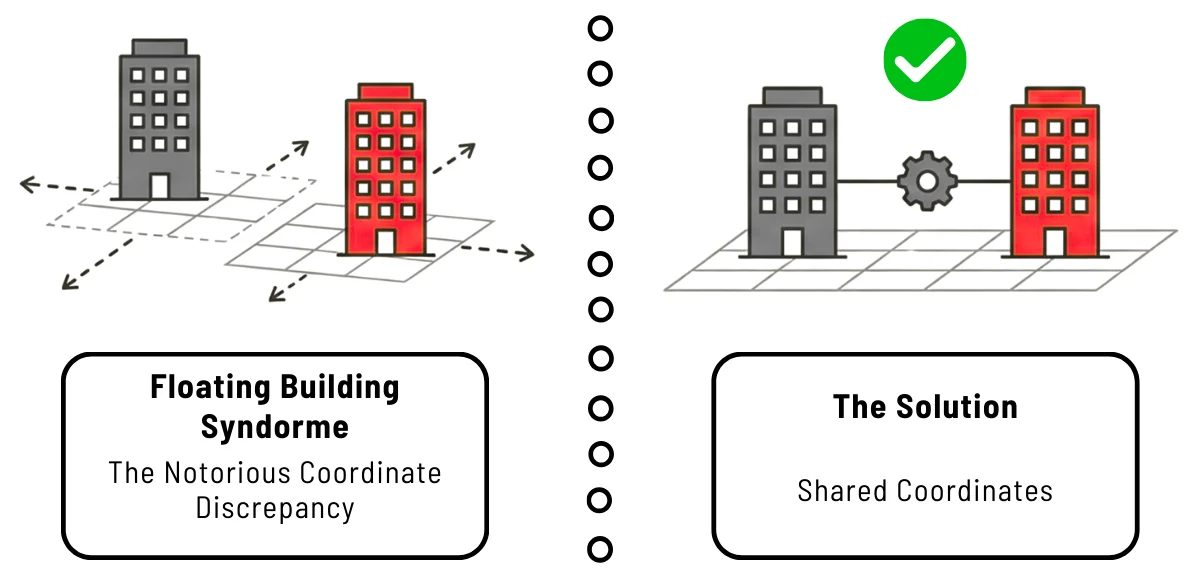
1. The “Floating Building” (Coordinate Misalignment)
The most frequent and frustrating complexity is Coordinate Discrepancy.
- The Issue: You link the Structural model into the Architectural host, and the structural grid appears 500 feet away from the building, or worse, floating in the air.
- The Cause: This occurs when teams use different origin points. One team might be modeling based on an internal “Project Base Point” (0,0,0), while another is using “Survey Point” coordinates tied to real-world GIS data.
- The Solution: Always use Shared Coordinates.
- Best Practice: Do not use “Auto – Center to Center” for final coordination. Establish a master site file, publish the coordinates to all discipline models, and always link using “Auto – By Shared Coordinates.” This ensures that no matter who links whom, the building parts snap together like a digital puzzle.
2. The “Russian Doll” Problem (Nested Links)
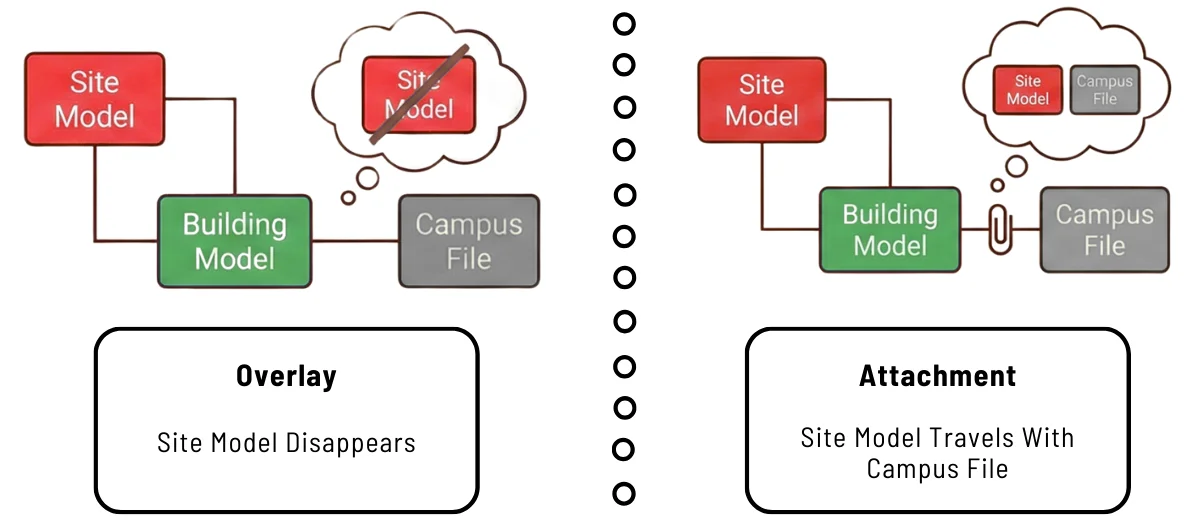
What happens when you link a file that already has other files linked into it? This is where the Overlay vs. Attachment complexity arises.
- The Issue: You link the “Site Model” into your “Building Model.” Later, you link your “Building Model” into a “Master Campus File.” Suddenly, the Site Model disappears from the Campus File.
- The Cause: This is controlled by the Reference Type setting in the “Manage Links” dialog.
- Overlay (Default): The nested link is ignored when the host is linked elsewhere. This prevents circular loops and redundant data.
- Attachment: The nested link acts as part of the host and travels with it when linked into a new file.
- The Complexity: Using “Attachment” carelessly can cause circular references (File A links B, B links A), which crashes Revit or creates duplicate geometry counts in schedules.
3. Visibility and Graphics Control
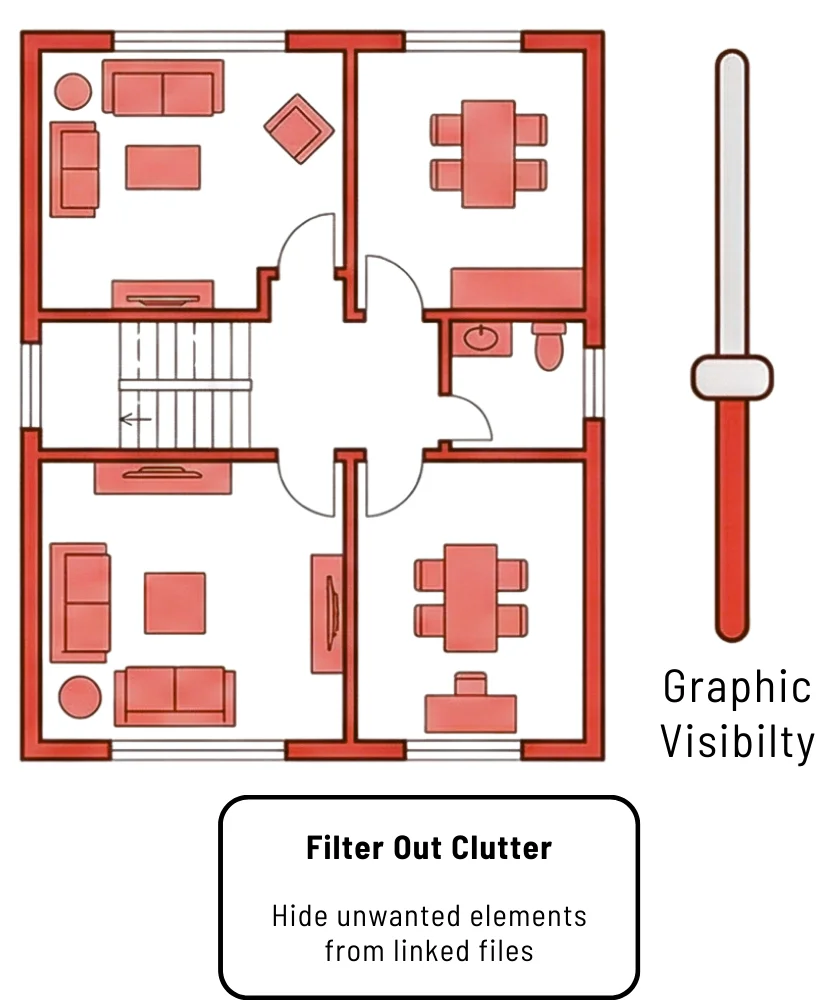
Linking a file brings in not just geometry, but the other team’s messy view settings.
- The Issue: The MEP engineer’s model includes unsightly red lines, unhidden CAD imports, or reference planes that clutter your clean architectural floor plans.
- The Solution: Use Revit Links in the “Visibility/Graphics Overrides” (VG) tab. You can set the link to “Custom” to turn off specific categories (like grids, levels, or imported CAD junk) in the linked file without affecting your own model.
Three Best Practices for Flawless File Linking
To avoid the complexities above, Project Managers and BIM Leads should enforce these standards:
- Standardize Naming Conventions: Ensure all linked files follow a strict naming protocol (e.g., PROJ-NUM_DISCIPLINE_MODEL-VER). If a file name changes, the link breaks (“Not Found”), forcing manual reloading and potential pathing errors.
- Manage Your Worksets: When linking heavy files (like a massive structural steel model), place the link on a dedicated Workset (e.g., “Link-Structure”).
- Why? This allows users to “unload” or close that specific workset when opening the project. It drastically improves opening times and performance when the linked data isn’t immediately needed.
- Use Relative Paths: Always set your path type to Relative rather than Absolute. If you move the project folder to a different server or drive letter, Relative paths will look for the link in the same folder structure. Absolute paths will break immediately if the drive letter changes (e.g., from X:\ to Z:\).
Need Expert Coordination?
Resolving coordinate issues and managing complex federated models requires specialized expertise. Our team resolves thousands of clashes annually, ensuring your construction documentation is error-free.
Explore BIM CoordinationConclusion
File linking is the digital mortar that holds a BIM project together. While complexities regarding coordinates and visibility are common, they are manageable with disciplined protocols and a clear understanding of Revit’s “Manage Links” tools. By mastering these workflows, teams can move from chaotic file exchanges to a streamlined, fully coordinated construction process.
FAQ: Common Revit Linking Questions
What is the difference between “Unload” and “Remove” link?
- Unload: Temporarily stops the link from loading to save memory. The path and settings are preserved. You can “Reload” it anytime.
- Remove: Completely deletes the reference. All dimensioning, tagging, or overrides associated with that link will be lost permanently.
Can I link a PDF or DWG into Revit?
Yes. Revit 2024 and newer versions have improved PDF linking capabilities. However, for precise coordination, linking native Revit (.rvt) or IFC files is always preferred.
Pro Tip: If you are still generating these 2D backgrounds using traditional methods, consider modernizing your initial workflow. Discover how Cloud CAD Collaboration is revolutionizing construction drawing workflows to speed up the drafting phase before moving into Revit.
How do I fix a “Link Not Found” error?
Open the “Manage Links” dialog. Select the red-flagged file and click “Reload From…”. Navigate to the correct folder location. To prevent this, ensure all team members map their network drives to the same letter or use Autodesk Construction Cloud (ACC) for cloud linking.